

Pin-Up Casino App
Looking for a fast, secure way to play Pin-Up Casino on your phone? Find out how to download and install it, make your first deposit, and uninstall it if needed. We’ve tested the app ourselves to give you a full view of its features, safety, and performance across Android and iOS. Whether you're just getting started or want a cleaner way to play without relying on app stores, you’ll find all the key details right here.
In this guide you will find:
- Pin Up App Brief Review
- Pin Up App Screenshots
- Requirements for Installing
- How to Install a Pin-Up Mobile App on Android
- How to Install a Pin-Up Mobile App on iOS
- Why Pin-Up App is not Available in PlayMarket and AppStore
- How Safe is the Mobile Version of Pin-Up
- How to Log In to Pin-Up From the Mobile Application
- How to Make Your First Deposit Through the App
- How to Uninstall the Pin-Up App
- Final Thoughts
- Frequently Asked Questions
Pin-Up App Brief Review
| Feature | Details |
|---|---|
| Compatible Operating Systems | Android (APK download) |
| Application Version | 2.1.1 |
| Pin-Up App Download Link | https://pin-up.world |
| Download Cost | Free |
| App Category | Real Money Casino & Sports Betting |
| Promo Code | PROMO773 |
| Welcome Bonus | 120% up to $5,300 + 250 Free Spins |
| Supported Countries | 10 countries worldwide |
| Application Languages | English, Hindi, Azerbaijani, Kazakh, Uzbek, Bengali, Spanish (Guatemala), Spanish (Mexico), Spanish (Ecuador), Spanish (Chile), Russian, Spanish (Bolivia), Spanish (Honduras), Spanish (Nicaragua), English (Guyana) |
| License | Curacao, OGL/2024/580/0570 |
| Customer Support | 24/7 Live Chat and Email Support + Telegram bot |
According to our experts, the Pin-Up Casino App offers one of the most complete mobile gambling experiences available today. The platform combines a real money casino and sports betting app with support for multiple languages and a wide selection of games from top providers. We have examined all possible performance aspects, including usability, compatibility, and transaction speed, and the app delivers a reliable experience across both Android and iOS devices.

With a Curacao license under OGL/2024/580/0570, the Pin-Up app works in 10 countries and gives players access to casino games, sports betting, and quick support from one account. The library includes slots with autoplay, video poker, crash games, and other popular formats. RNG protection, account verification, and standard security tools are also part of the app’s setup.
Pin-Up App Screenshots
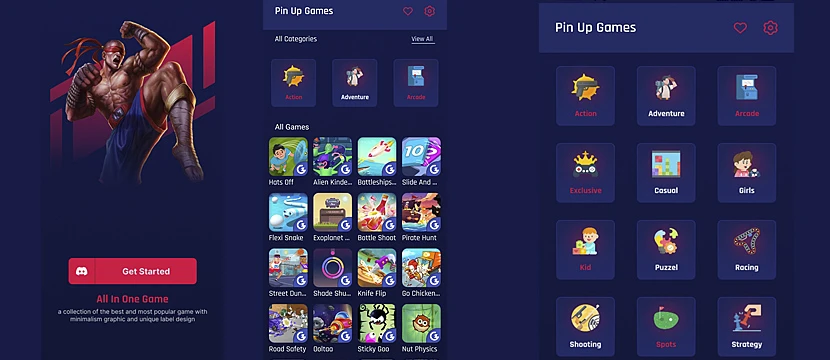
The screenshots below show the Android app without marketing fog. You can see how the casino lobby is arranged, how the game categories are arranged, and where account tools and betting sections are placed. Basically, enough to know if the app looks usable before it takes space on your phone.
The Pin-Up app for Android keeps navigation practical. Large icons make the main sections easy to spot, swipeable menus help users move between categories, and game previews load quickly during regular use. In our Pin-Up app test, switching from slots to live tables took only a few taps, while the search bar helped find specific games without digging through the full library.
Requirements for Installing
Pin-Up mobile setup is different for Android and iPhone. Android users need the official APK file, while iPhone users work through Safari because the native iOS app is still in development. So before installing anything, check the device, the source, and the access method first.
According to our Pin-Up app review, here’s what you’ll need:
| Requirement | iPhone | Android |
|---|---|---|
| Access Method | Safari mobile website shortcut | APK download from the official Pin-Up website |
| Operating System | Recent iOS version with Safari support | Android 6.0 or later |
| Storage | No native app storage needed | At least 100 MB free space |
| Browser / Install Permission | Safari access and Home Screen shortcut support | Permission to install apps from the browser |
| Internet Connection | Stable mobile data or Wi-Fi connection | Stable mobile data or Wi-Fi connection |
| Account Requirements | Age 18+, account access, and supported region | Age 18+, account access, and supported region |
How to Install a Pin-Up Mobile App on Android

The Pin-Up Android app is installed through the APK file from the official website. This is common for real money casino apps that are not available through Google Play in every market. Android may ask for one extra permission before installation, so the main rule is simple: download the file only from Pin-Up, not from random APK sites with heroic promises and suspicious buttons.
1Go to the official Pin-Up website – Open your browser on your Android device and visit pinupapp.com. Use the official source only, because random APK sites are where bad decisions go to multiply.
2Download the APK file – Find the Android download button on the site and save the Pin-Up APK to your phone or tablet. Keep the file from this source only, even if another website promises a newer version with a very suspicious smile.
3Allow installs from unknown sources – Android may block the installation at first. Open the warning or go to your phone settings, allow installs from this browser, and continue only if the file came from the official Pin-Up website.
4Install the app – Open the downloaded APK and confirm the installation. Android will handle the rest, so this step usually takes less time than choosing which slot to open first.
5Open the app and log in – After installation, the Pin-Up icon will appear with your other apps. Open it, sign in or create an account, and use the casino, sports betting, payments, and profile sections from your Android device.
How to Use Pin-Up on iOS
The Pin-Up iOS app is still in development, so iPhone users do not have a native App Store version yet. At the moment, access goes through the mobile website in Safari. The Home Screen shortcut only saves that page as an icon, which makes opening Pin-Up faster while the separate iPhone app is still waiting its turn.
1Open the official Pin-Up website in Safari – Use Safari on your iPhone and enter the correct Pin-Up domain for your region. Do not use random links from ads or messengers, because casino copycats love free traffic too.
2Tap the Share icon – When the Pin-Up page opens, use the Safari button that looks like a square with an arrow. Apple placed it at the bottom of the screen, because apparently one universal “save this page” button would be too generous.
3Find Add to Home Screen – Scroll through the Safari menu and select Add to Home Screen. If the option is lower in the list, swipe through the actions until it appears.
4Name the shortcut – Safari will suggest a name for the icon. You can leave it as it is or shorten it to “Pin-Up” so it does not look like a full website address parked on your Home Screen.
5Use the Home Screen shortcut – The new Pin-Up icon will open the mobile site in Safari without the usual address-bar routine. From there, log in as usual and use the same casino, sports betting, deposit, withdrawal, and profile sections available in the mobile browser.
Why Pin-Up App is not Available in PlayMarket
The Pin-Up Android app is not listed on Google Play because gambling apps must pass Google’s market-by-market rules before they can appear in the store. Even a legal casino app may be unavailable there if it does not match Google Play requirements for a specific country.
For Android users, Pin-Up provides the official app through its website as an APK file. This lets players install the mobile casino directly, with the download and setup handled outside Google Play.
How Safe is the Mobile Version of Pin-Up
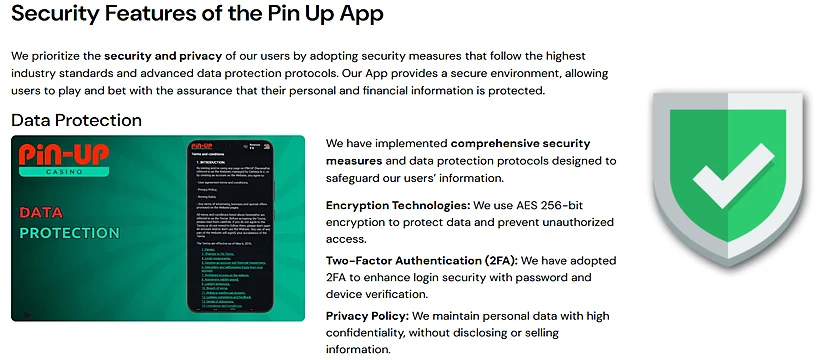
The mobile version of Pin-Up uses the same account system, payment sections, and security checks as the desktop site. The important part is the source. Android users should download the APK only from the official Pin-Up website, because third-party APK pages can turn a normal casino install into a very expensive lesson in trust issues.
Security is mostly about the route your data takes and the place where the file comes from. In the app, account login, balance actions, and payment pages stay connected to the same Pin-Up system used on desktop. The risky part usually appears before installation, when players search for the APK outside the official site and end up on pages that care more about downloads than safety.
During our Pin-Up mobile app test, we checked the main areas on different devices, including login, game loading, payments, profile tools, and support access. The app worked as the full mobile version of the platform, so players do not lose key casino features when moving from desktop to phone.
How to Log In to Pin-Up From the Mobile Application
Pin-Up mobile login uses the same account details as the desktop version. The only thing worth checking first is the app source, especially on Android, where APK files can appear on sites that should be avoided with the same energy as “free iPhone” pop-ups.
1Open the Pin-Up mobile app – Tap the Pin-Up icon and wait for the login screen to load. On Android, this should be the app from the official Pin-Up website. If the icon came after a “download now” button on some random APK page, that is already a bad plot twist.
2Enter your account details – Use the same email address or phone number you used during registration, then enter your password. Before retrying a failed login, check the boring stuff first: keyboard language, extra spaces, autofill, and that one uppercase letter your phone decided to “help” with.
3Confirm the login – Tap Log In after entering your details. If the information is correct, Pin-Up will open your account and send you to the main app area.
4Reset your password if needed – Use the Forgot Password? link if your password is missing from memory again, because of course it happens right when you need it. Pin-Up will send recovery instructions by email or SMS.
5Check your account after login – Once inside, review your balance, active bonuses, payment section, and profile details before playing. This takes a minute and helps avoid the classic “why is this bonus here?” investigation later.
How to Make Your First Deposit Through the App
First deposit on the Pin-Up mobile app goes through the cashier section. The exact payment list depends on your country, so check the available methods, limits, and possible fees before sending money. Boring? Yes. Useful? Very much, especially when a minimum deposit suddenly looks at you like a tiny financial trap.
1Open the Pin-Up app and log in – Launch the app and enter your account. If you use the iOS Home Screen shortcut, open Pin-Up through Safari and log in there.
2Go to the Cashier – Open the profile menu or balance area and look for the deposit section. This is where Pin-Up shows the payment methods available for your account and region.
3Pick a payment option from the cashier – Choose one of the methods shown for your account. Pin-Up may display bank cards, e-wallets, crypto, or local payment systems, depending on your country. Check the minimum deposit and any extra notes before moving on.
4Enter the amount – Add the deposit amount and check the minimum limit before confirming. Payment pages are not the best place for freestyle guessing.
5Confirm the transaction – Follow the payment instructions shown on the screen. In most cases, the balance updates after the payment is approved, although some methods may take longer depending on the provider.
How to Uninstall the Pin-Up App
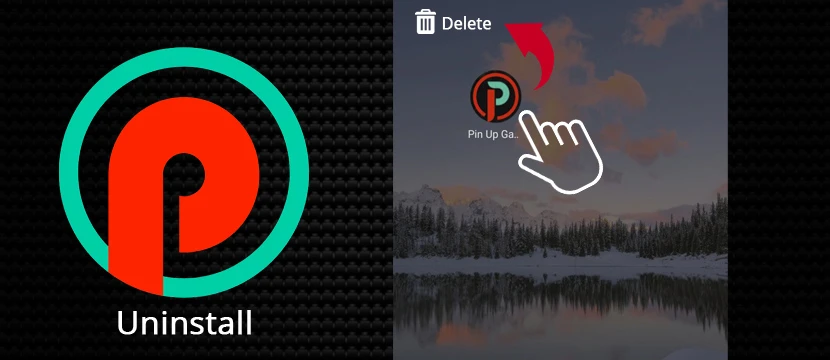
Pin-Up removal depends on how you use it on mobile. Android users delete the installed APK app from the phone. iPhone users remove the Safari shortcut, since the separate iOS app is still in development and the Home Screen icon only points to the mobile site.
1Find the Pin-Up icon – On Android, check the app drawer or Home Screen for the installed Pin-Up app. On iPhone, look for the Home Screen shortcut you saved from Safari.
2Hold the icon – Press the Pin-Up icon until the phone shows its removal options. Android usually opens an app menu, while iPhone may first make the icon shake like it is nervous about being deleted.
3Remove Pin-Up from the device – On Android, tap Uninstall. On iPhone, remove the Safari shortcut from the Home Screen through the option shown in the icon menu.
4Clear stored data on Android if needed – Before uninstalling, Android users can open Settings, go to Apps, choose Pin-Up, and clear storage. This removes local app data from the device.
5Keep account access in mind – Deleting the app or shortcut only removes Pin-Up from that phone screen. Your account stays on the platform, so balance, bonuses, verification status, and profile settings remain connected to your login.
Final Thoughts
After testing the Pin-Up app on mobile, I’d keep the verdict simple. Android users have the proper APK route, iPhone users have the Safari shortcut, and nobody should pretend both versions are equal yet. Still, the core mobile setup is there: games, sports betting, payments, bonuses, profile settings, and support are all reachable without turning the menu into a detective case.
Safety is mostly about not downloading nonsense. Pin-Up works under a Curacao license, and the Android APK should come from the official website only. Third-party APK pages can keep their “latest version” banners to themselves.
Login worked during our test, the main sections loaded without issues, and payments were easy to find. For a mobile gambling app, that covers the essentials.
Quick tips:
- Use the official Pin-Up website for the Android APK.
- Use Safari on iPhone until the iOS app is released.
- Check limits and verification before adding funds.
Frequently Asked Questions
Is the Pin-Up app available on Google Play or the App Store?
No. Android installation goes through the APK file from the official Pin-Up website. The iOS app is still in development, so iPhone users currently access Pin-Up through Safari and can add the site icon to the Home Screen.
Is the Pin-Up app safe to use?
The app is safe when the APK comes from the official Pin-Up website. Third-party APK pages are the weak point, because the file can be changed before it reaches your phone.
How do I install the Pin-Up app on Android?
Open the Pin-Up website on your Android phone, download the APK, allow installation from the browser if Android blocks it, then open the file and confirm the setup.
Can I make a deposit through the Pin-Up app?
Yes. Deposits are made through the cashier or balance section. The available payment methods, limits, and verification steps depend on the player’s country and account status.
How do I uninstall the Pin-Up app?
Android users can uninstall the APK app through the icon menu or phone settings. iPhone users can remove the Safari shortcut from the Home Screen. Account data remains linked to the Pin-Up login.